Close Menu
Port Forwarding Hub

    Subscribe to Updates

    Get the latest creative news from FooBar about art, design and business.

    How to Port Forward on T-Mobile and Bypass CGNAT

    January 3, 2025

    How to Port Forward on Starlink and Bypass CGNAT

    January 1, 2025

    How to Port Forward Virgin Telco and Bypass CGNAT in Spain

    December 16, 2022
    Facebook X (Twitter) Instagram
    Trending
    • How to Port Forward on T-Mobile and Bypass CGNAT
    • How to Port Forward on Starlink and Bypass CGNAT
    • How to Port Forward Virgin Telco and Bypass CGNAT in Spain
    • How to Port Forward Orange and Bypass CGNAT in Spain
    • How to Port Forward Jazztel and Bypass CGNAT in Spain
    • How to Port Forward Pepephone and Bypass CGNAT in Spain
    • How to Port Forward Yoigo and Bypass CGNAT in Spain
    • How to Port Forward Lowi and Bypass CGNAT in Spain
    Facebook X (Twitter) Instagram YouTube
    Port Forwarding Hub
    Subscribe
    Friday, January 3
    • Home
    • Tools
      • Port Checker
    • News
    • About Us
    • Contact
    Port Forwarding Hub
    Home»Games»Set Up Madden NFL 21 Port Forwarding Now With This Guide
    Games

    Set Up Madden NFL 21 Port Forwarding Now With This Guide

    Yasir NawazBy Yasir NawazOctober 14, 2020Updated:December 1, 2020No Comments3 Mins Read
    Facebook Twitter Pinterest LinkedIn Tumblr Email
    NFL-21-port forwarding
    Share
    Facebook Twitter LinkedIn Pinterest Email

    Set Up Madden NFL 21 Port Forwarding Now With This Guide

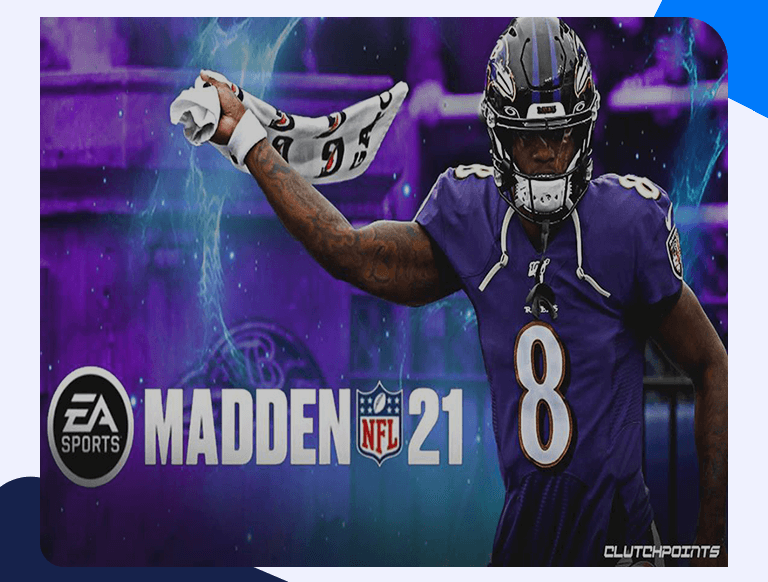
    Madden NFL 21 is the latest iteration of the Madden NFL franchise developed and published by Electronic Arts in 2020. As you’d expect, Madden NFL 21 has all the gameplay features that have become a mainstay in the gaming series. The roster on the game is similarly updated according to real-life rosters. As is the case with most sports games, the multiplayer mode is where the real fun begins as you compete with your friends and millions of other players from around the world. Keep on reading to learn how Madden NFL 21 Port Forwarding can help you enjoy Madden NFL 21 even more.

    Getting Started With Madden NFL 21 Port Forwarding

    Without getting too technical, Port Forwarding creates a direct connection between you and the player with whom you’d like to play online. Most routers, especially Netgear or TP-Link brands, come with a basic firewall that screens all incoming connections for malicious content. Once you remove that intermediary step, you’ll have data flowing faster, giving you better ping times and thus improved gameplay.

    Things You’ll Need Beforehand

    You’ll only need three things before you can start setting up Madden NFL 21 Port Forwarding on your PC/gaming console. These are:

    • The IP Address of your Router (Read the section below to learn how to find this out).
    • Your PC/gaming console’s IP Address (Read our PS4 and Xbox One guides and learn how to find these).
    • A list of TCP and UDP ports to forward (Keep on scrolling to find out what these are).

    Find Out Your Router’s IP Address

    Follow these steps to find out your router’s IP Address:

    • On the Windows search bar, type “Command Prompt” or “cmd”.
    • Once Command Prompt is open, type in “ipconfig/all”.
    • Your router’s IP Address should be mentioned right beside Default Gateway.

    How to Forward Ports for Madden NFL 21

    Even if you’ve never done port forwarding before, it’s a reasonably straightforward process, not to mention completely safe. Just follow this step-by-step guide, and you’ll have Madden NFL 21 Port Forwarding set up on your PC/gaming console in a matter of minutes:

    • Open any web browser and log in to your router.
    • Scroll down to the Port Forwarding section.
    • Enter the IP Address of your PC/gaming console in the appropriate boxes.
    • Similarly, enter the TCP and UDP ports in the relevant boxes.
    • Save these settings and reboot to let changes take effect.

    Ports To Forward for Madden NFL 21

    Here are the ports you’ll need to forward:

    PlayStation 4

    Protocol TCP: 465,983,1935,3478-3480,5223,10070-10080

    Protocol UDP: 3074,3478-3479,3658,10070


    Xbox One

    Protocol TCP: 3074

    Protocol UDP: 88,500,3074,3544,4500


    PC

    Protocol TCP: 3216,8080,8094,8097,10000-19999,27015-27030,27036-27037,42125-42126,42210

    Protocol UDP: 3126,4380,10000-19999,27000-27031,27036


    Share. Facebook Twitter Pinterest LinkedIn Tumblr Email
    Yasir Nawaz

    Yasir enjoys reading and writing about the latest developments in the world of AI and cybersecurity. A firm believer in the right to digital privacy for all, he shares his thoughts on issues both controversial and menial. His other interests include chess, reading, and looking to the horizon in his best Luke Skywalker impression.

    Related Posts

    How to Port Forward Heroes of Might and Magic

    October 29, 2022

    How to Port Forward Diablo II – A Guide for Beginners

    October 29, 2022

    A Beginner’s Guide for Port Forwarding Guild Wars

    October 26, 2022

    How to Port Forward Phantasy Star Universe – A Beginner’s Guide

    October 19, 2022
    Add A Comment
    Leave A Reply Cancel Reply

    Categories
    • Games
    • Guides
    • Info
    • News
    • Routers
    • Walkthroughs
    Search
    featured

    How to Port Forward The King of Fighters XV on your router

    February 2, 2022
    Advertisement
    Port Forwarding Hub
    Facebook X (Twitter) Instagram
    • Home
    • Routers
    • Games
    • Software
    • Guides
    • Walkthroughs
    • About Us
    © 2025 All Rights Reserved Port Forwarding Hub.

    Type above and press Enter to search. Press Esc to cancel.