


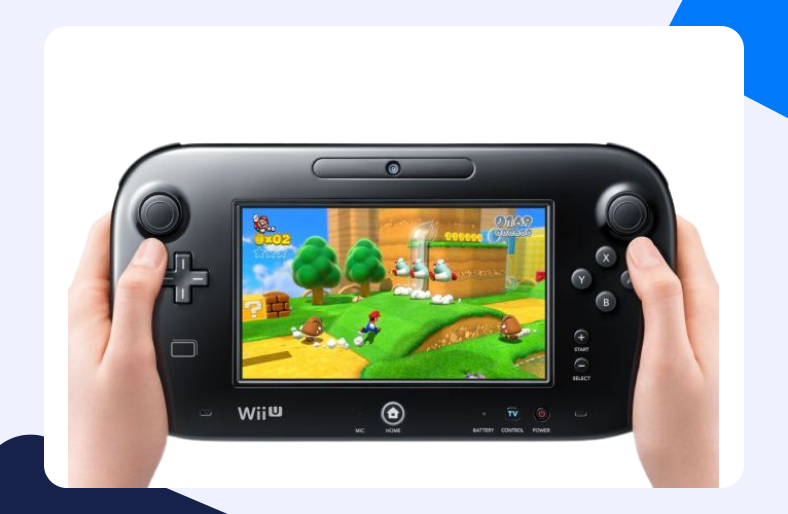
Released in 2012, Wii U, a gaming console by Nintendo sold more than 10 million units worldwide. The gaming console, Wii U paved the way for the renowned Nintendo Switch.
But is it that you are finding it difficult to connect to any gaming server with Wii U? Perhaps you can’t connect at all. Have no worries! This guide for Port Forwarding Wii U will help you understand what changes you need to implement to bypass any connectivity trouble.
But first, let us understand what Port Forwarding actually is and why is it even necessary.
What is Wii U Port Forwarding
Wii U Port Forwarding, or the concept in general, allows devices to connect to external sources. All of this happens within the confining boundaries of a local network.
Port Forwarding will allow external devices to bypass any firewall blockages. This results in stable connectivity and better speeds.
Why is Port Forwarding necessary
Well, it is quite significant as it allows your device to connect with other sources outside your network. That is because the firewall in your router tends to block connection requests from external sources by default.
Now this hinders your network’s ability to communicate with devices like gaming servers. However, by setting up Port Forwarding, you can grant specific external sources direct access to your local network to improve connectivity and speed.
Is Wii U Port Forwarding safe
Many utilize Wii U Port Forwarding to bypass connectivity blocks to communicate with external sources. It is a commonly deployed technique, mostly used by gamers. It is considered to be safe for the most part. If you have proper security installed in your system, you have absolutely nothing to fear.
Considering how common cyber theft is these days, system security has become a dire necessity. So if you have a proper firewall or a VPN service, you shouldn’t worry at all.
What do you need for Port Forwarding Wii U
Port Forwarding is a simple procedure. Even newbies can do it without any hesitation. Just note the following information about your network’s configurations (don’t worry we will tell you how).
- Take note of the IP address of your router. It will help you to log into your router later.
- Note the IP address of your system. It will come in handy while adding a new Port Forwarding rule.
- Note down the TCP and UDP ports specific for Wii U Port Forwarding.
Find your router’s IP address
Your router’s IP address is highly significant. It allows us to access your router’s dashboard. You can easily find your router’s IP address with the control panel, command prompt, or even the router itself. As the last method is unreliable, we shall explain using the command prompt.
- Go to the start menu.
- Type cmd and hit Enter.
- The command prompt will now pop up on your screen.
- Type ipconfig. Hit enter.
- Navigate to the Default Gateway section.
- You will see an IP address beside Default Gateway, note it down.
Set up a static IP address
You will be much better off with a static IP address than a dynamic one. Trust us! Because the dynamic IP address will continue to change given its dynamic status. A static IP address, on the contrary, saves us from the hassle of managing Port Forwarding for changing addresses.
- Go to a web browser.
- Enter your router’s IP address in the URL bar.
- Log into your router’s homepage with proper credentials.
- On the homepage, locate the DHCP reservations tab.
- Enter a static IP address in the said tab which could be set up for your device’s MAC address.
TCP and UDP ports for Wii U Port Forwarding
The default ports for Port Forwarding Wii U are:
| TCP: | 6667, 12400, 28910, 29900, 29901, 29920 |
| UDP: | 1-65535 |
Steps for Port Forwarding Wii U
At this point, we have gathered all we need to successfully forward ports for Wii U. Don’t fret even if you are new to this Port Forwarding realm. It might look difficult, but Wii U Port Forwarding is pretty simple.
All you need to do is log into your router, find the Port Forwarding section and add a new Port Forwarding entry. It is really that simple. Now to help you out, the detailed steps are listed below:
- Go to a web browser.
- Enter your router’s IP address in the URL bar.
- Log into your router’s homepage with proper credentials.
- On the homepage, locate the Port Forwarding tab.
- In the Port Forwarding section, enter your system’s IP address to add a new rule.
- Enter the TCP and UDP ports that are specific for Wii U Port Forwarding.
- That’s it. Just save the changes.
- You may also have to restart your router to see the changes take effect.
And that’s all we have to do for Wii U Port Forwarding. Simple, wasn’t it? Now if you ever encounter another trouble with connectivity, check out our detailed Port Forwarding guides for other games and consoles.
